Boeing 737 Simulator Parts
Gallery


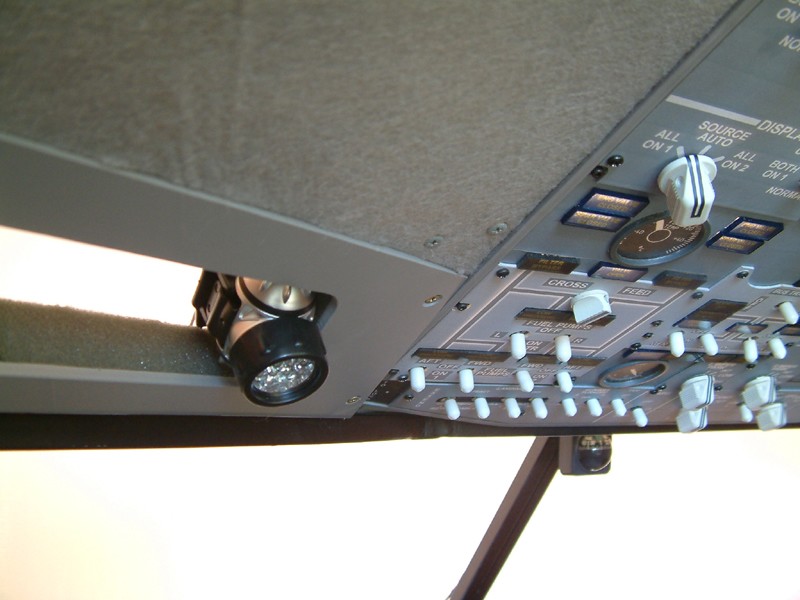


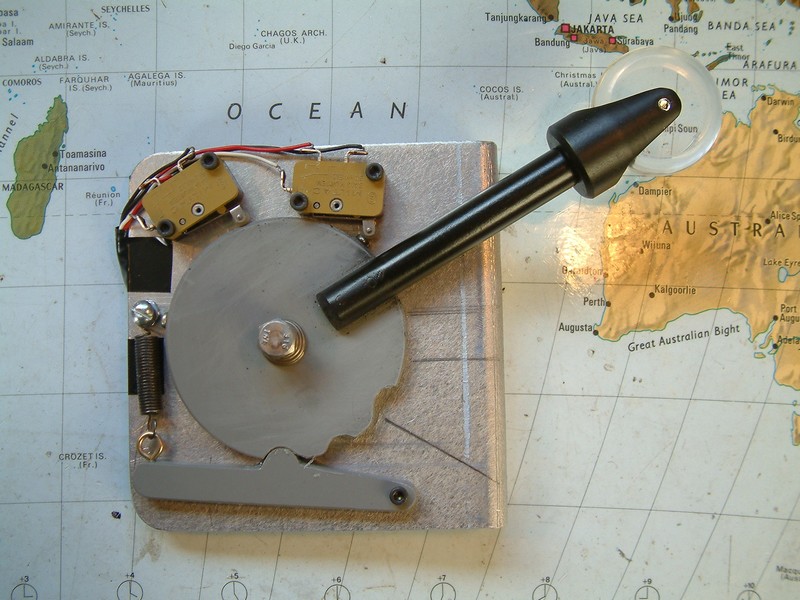
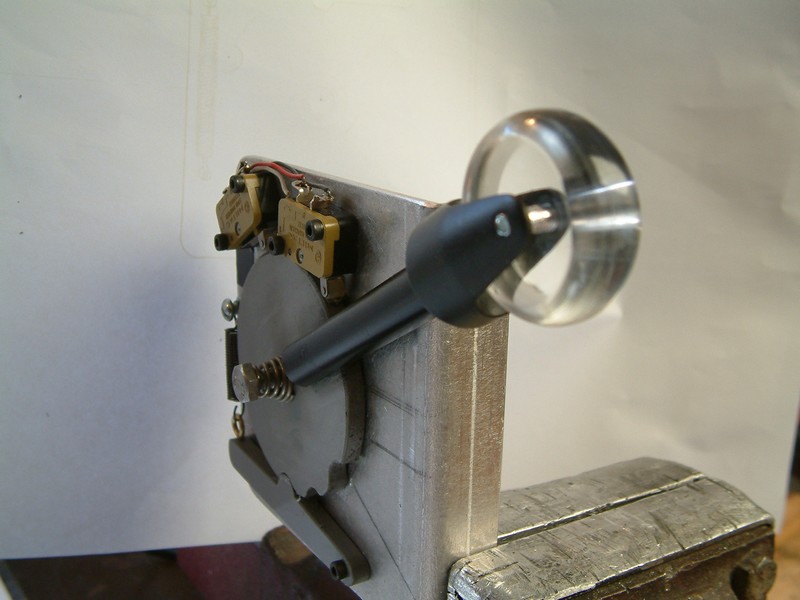
This fixed base flight simulator operates utilizing Microsoft’s flight simulator 2004 and the award winning 737NG software from PMDG The dual position flight controls are interfaced to the program via USB SimBoards from Flightdeck Technology UK. The simulator is in an advanced stage of construction being fully operable with a 2.2 metre rear projected forward view. The simulator can be flown from the Captain’s and First Officer’s positions with ease.
The simulator is about to undergo a major upgrade with the conversion from PMDG to Sim Avionics and Flight Simulator 10 (FSX). There will be new FDS Flight Management Computers and a new true scale Main Instrument Panel will be fitted. The overhead will also receive a full set of back lightable panels from the new CNC machine in the Aerosim workshop.
From the very beginning of this project, the simulator was designed to run on a single PC with simplicity and reliability being the foremost design ingredient. The following describes how the computer is configured. The Boeing software used is from PMDG and is the 737-800NG model, (without virtual cockpit). The Sim-Board interface solution comprises of a Master module and a 64x8x8 Input module from www.flightdecktechnology.com These purpose built modules provide an excellent interface between the hardware of the simulator and the FS software, they have proved to be very simple to use and are highly recommended. I will be upgrading to an FDS System 1X module soon for improving input/output interface options.
The computer is a 2.4 Ghz quad core with an Nvidea 8800GTS PCI-e video card hooked up to the digital Matrox Triplehead2go device. The last major components are the EFIS and Mode Control Panels from Italian company, CP Flight. These units are simple to use and they operate the PMDG software very well. I highly recommend these scale replica components above their counterparts as the CP Flight units are fitted with a front face built by Engravity and it has wonderful backlighting which intergrates with the FS lighting function. They also allow for future expansion and the addition of CP Flight radio modules, see www.cpflight.com
Visual display method
With the Matrox Triplehead2go device set to “stretched mode” across three monitors, the desktop resolution of the computer becomes 3072 x 768 as opposed to the standard resolution of 1024 x 768. (It is 3 times wider). 1280 x 920 is possible but lowers frame rates. With three monitors plugged in and the computer running, the FS2004 program is run in ‘window mode’ and appears stretched three times wider than usual. The right hand edge of the main FS window is clicked and dragged to the left until it is only displayed on monitor number 1. Monitors 2 & 3 now go blank. Monitor 1 sits to the left of my simulator and the feed to it is also sent to my high definition projector for the main front view. Monitor 2 sits behind the Main Instrument Panel, (MIP) in front of the Captain’s position and monitor 3 sits behind the MIP in the centre. The feed to monitor 2 also has a splitter and this feeds a fourth monitor behind the MIP on the First Officer’s side. (Captain and F/O receive the exact same display). This is a little unlike the real aircraft where the pilots can have displays set individually, but it is totally useable and still looks great. (The left hand CP Flight EFIS unit controls all aspects of the PMDG Nav display and is a joy to use).
The main instruments on the PMDG panel eg: Attitude indicator, Navigation display and EICAS display can be clicked on and enlarged when the 2D panel is open. The open GL format of these instrument displays means they can be resized to any size without the quality of the display being adversely affected. These displays are now dragged to the right and placed in position on monitors 2 & 3. They are resized to fill the square apertures on my MIP and the replica Boeing panel comes to life. The panel now displays instruments which are very similar in appearance to the software offered by Project Magenta but without the expense. Radio, FMC, Overhead & Throttle windows are toggled to display on the main screen, (monitor 1). This is fine as their appearance is usually temporarily. The only time I use the PC mouse is to turn on the TCAS and program the FMC, most of the time the mouse isn’t required. This is a very cost effective way to set up a glass cockpit display with excellent reliability and ease of use. A description with pictures was published in the September 2008 issue of Computer Pilot magazine.
The sim regularly attracts a long queue of visitors including several licenced airline panels. One Virgin Blue Captain is a regular and always welcome visitor. Gwyn is always happy to share the knowledge gained during the construction of the simulator with other builders and he moderates “Westozy’s Mechanical Engineering” forum at www.mycockpit.org Gwyn also holds a very non current pilot’s licence with ratings on C150, C172 and Eagle 150.